The viewer
The viewer shows a model in 3D and as a slice, side by side. You can click on anything to know what it is, hide and cut away cells, look for gaps and overlaps, measure volumes, draw tally results, and lay out FMESH meshes. This page covers the everyday use; the full reference has every panel and option.
Open a model
Any of these:
llevant-viewer model.i            # the downloaded program
llevant view model.i              # the llevant command
python -m llevant view model.i    # from the Python package
or start any of them without a model (llevant-viewer, llevant view,
python -m llevant view) and use Open a model… (Ctrl+O), pick a recent file, or
drop an input file on the window. From a Python script, llevant.view("model.i")
opens it and returns when the window closes (llevant.view(): the start screen).
The first time a big model is opened it takes a while (about 20 s for a 425 000-cell model) while the window shows its progress. After that it is cached, and opens in about a second. When you save the input file from your editor, the viewer offers to Reload it.
The window
| Where | What |
|---|---|
| Top row | the menus, the four workspaces (Explore, Check, Results, Tally), the search box, Undo and Redo |
| Left | the panels of the workspace: Find, Materials, Volumes… |
| Middle | the 3D view and the slice |
| Right | the inspector: what you clicked on |
| Bottom | the status bar: what is under the pointer, work in progress |
The workspaces group the panels by job:
| Workspace | Key | For |
|---|---|---|
| Explore | Ctrl+1 | finding your way: cells by rule, materials, envelopes, volumes, saved views |
| Check | Ctrl+2 | gaps, overlaps and the input's warnings |
| Results | Ctrl+3 | tally results over the geometry |
| Tally | Ctrl+4 | laying out FMESH meshes |
Move around
| In | Do | To |
|---|---|---|
| 3D | middle-drag | turn about the point under the pointer |
| 3D | right-drag, or Shift + middle-drag | slide |
| 3D | scroll | move towards the point under the pointer |
| 3D | W A S D, Q E (pointer over the view) | fly; Shift faster, Ctrl slower |
| 3D | click the axes, top right | look along x, y or z |
| 3D | Alt+← / Alt+→ | back and forward through the places you looked from |
| Slice | right- or middle-drag | pan |
| Slice | scroll | zoom |
| Slice | PageUp / PageDown | step the slice through the model |
| Either | Fit in the view's header | frame the whole model |
Press F1 at any time for every key and mouse action.
Find out what something is
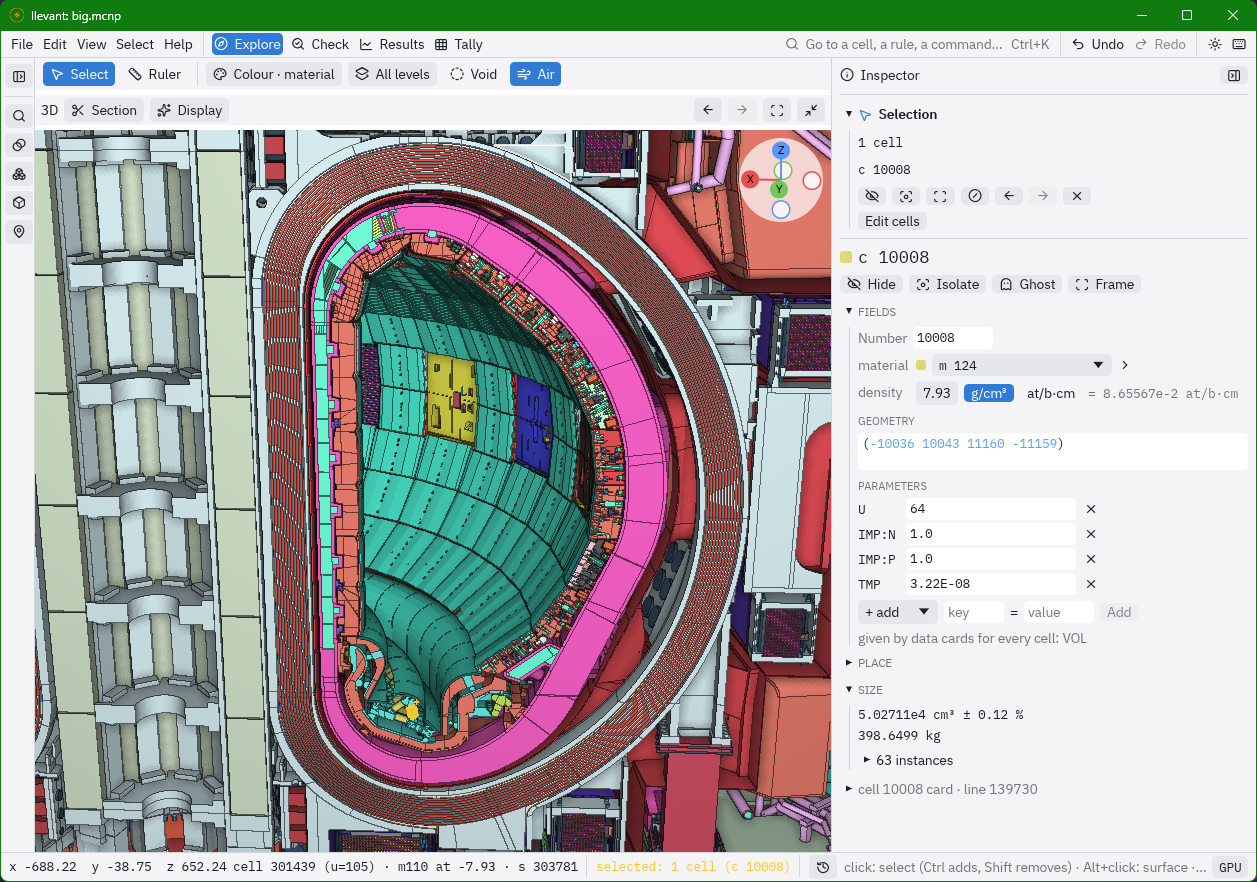
- Click a cell to select it. It is outlined in both views, and the inspector shows its page: material, density, universe, where it is, its card as written.
- Double-click a point to inspect it: the cell there, the path through universes
and lattices (
12 > 304[1,-2,0] > 7), and the coordinates. - Right-click for the menu of what is there: the cell, the surface, its universe and material, with actions on each.
- Alt+click picks the surface instead of the cell.
- In the inspector, every cell, material, surface and universe is a link: click it to go to its page, and back with ←.
Hide, isolate, ghost
Select one or more cells (Ctrl+click adds, Shift+click removes, a drag selects a box), then:
| Key | Does |
|---|---|
| H | hide the selection |
| Shift+H | isolate it: show only the selection |
| Alt+H | show everything again |
| G | make it a ghost: a see-through shell showing what is inside |
| F | frame it |
| Esc | clear the selection |
Void cells are hidden from the start, but other cells that fill the space around the model, like air, are not. If you only see a big box, click it and press H.
To select by rule, type in the Find panel or the search box (Ctrl+K): c 10-20
(cells), m 5 (a material), u 20040 (a universe), in c 100 (a cell and
everything in it), $ shield (cells with "shield" in their $ comment). Combine
them with & (and), | (or) and ! (not): u 20040 & m 5.
Everything you hide, colour or cut can be undone with Ctrl+Z.
Slices
The slice header chooses the plane: x, y, z, or radial (a plane through an axis, turned to an angle: the slices of a torus). Type the position, or use PageUp/PageDown. Right-click → Slice here moves the slice to a point.
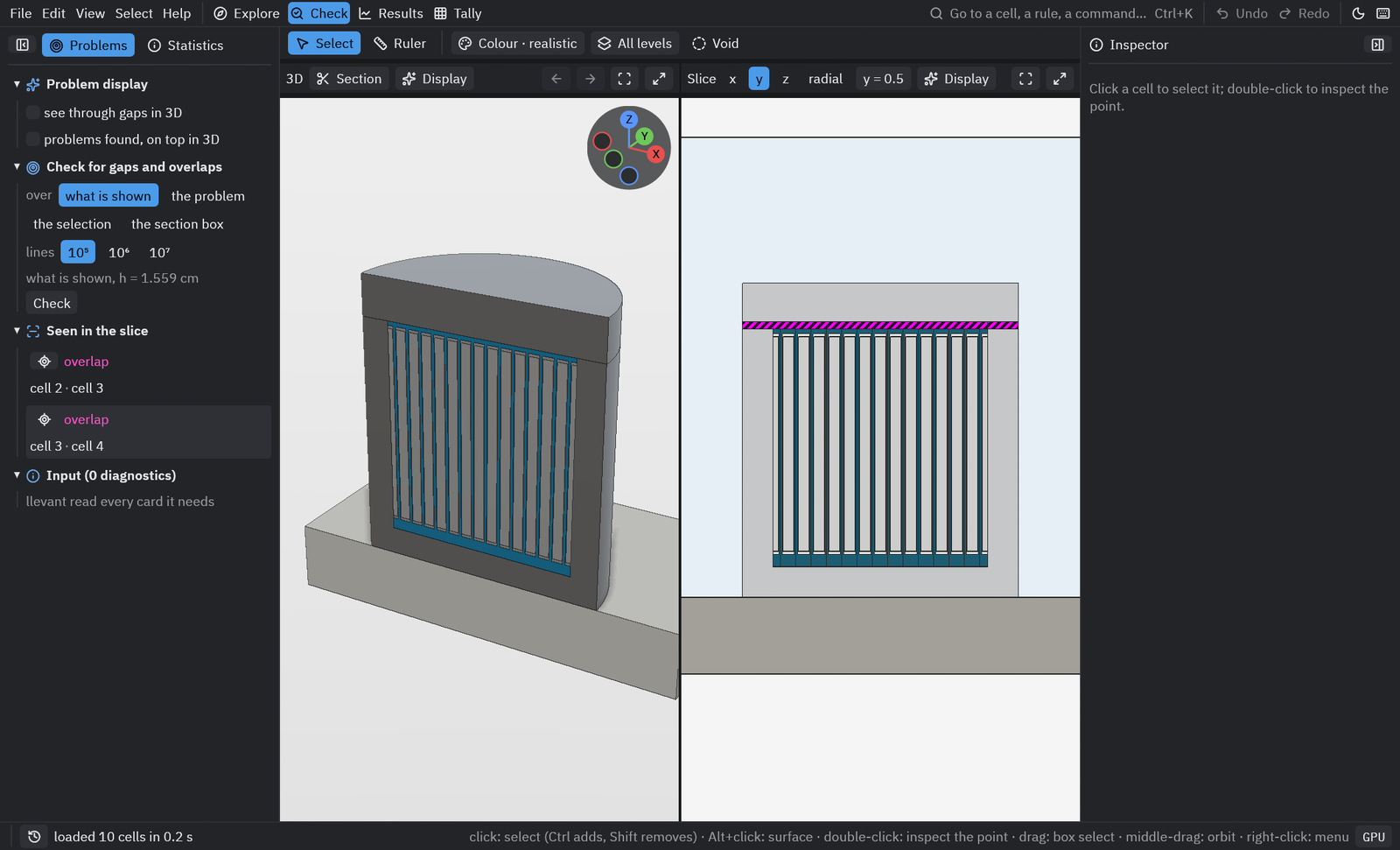
Slices are exact: every boundary is where MCNP would put it. Gaps are drawn black and overlaps hatched magenta. Display in the header adds cell and surface numbers, as MCNP's plotter writes them, and a coordinate grid.
Grey slices
A slice that lies exactly on a surface shows it as grey. Move the slice a little (z = 0.5 rather than z = 0).
Cut the model open
Section in the 3D view's header adds cuts: a plane, a wedge (a slice of cake taken out), or a section box (only what is inside it). Drag the handles in the 3D view to move or turn them. Right-click → Cut here adds a plane at a point.
Colours
The Colour menu over the views colours by cell, material, universe, density, or realistic: each material looks like what it is made of (steel, concrete, water, copper…), lit like a photograph. The Materials panel shows the colours, and lets you choose a material's look when the guess is wrong.
Check for gaps and overlaps
In Check (Ctrl+2), the Problems panel runs a check of the whole model, or of a region, in the background. Each problem found is listed with its cells and volume, largest first; its arrow takes you to it. Problem display draws them on top of everything in 3D.
Volumes and masses
In Explore, the Volumes panel measures the volume and mass of every material, cell or universe, with its uncertainty. Refine makes it more precise; the table can be saved as CSV.
Tally results
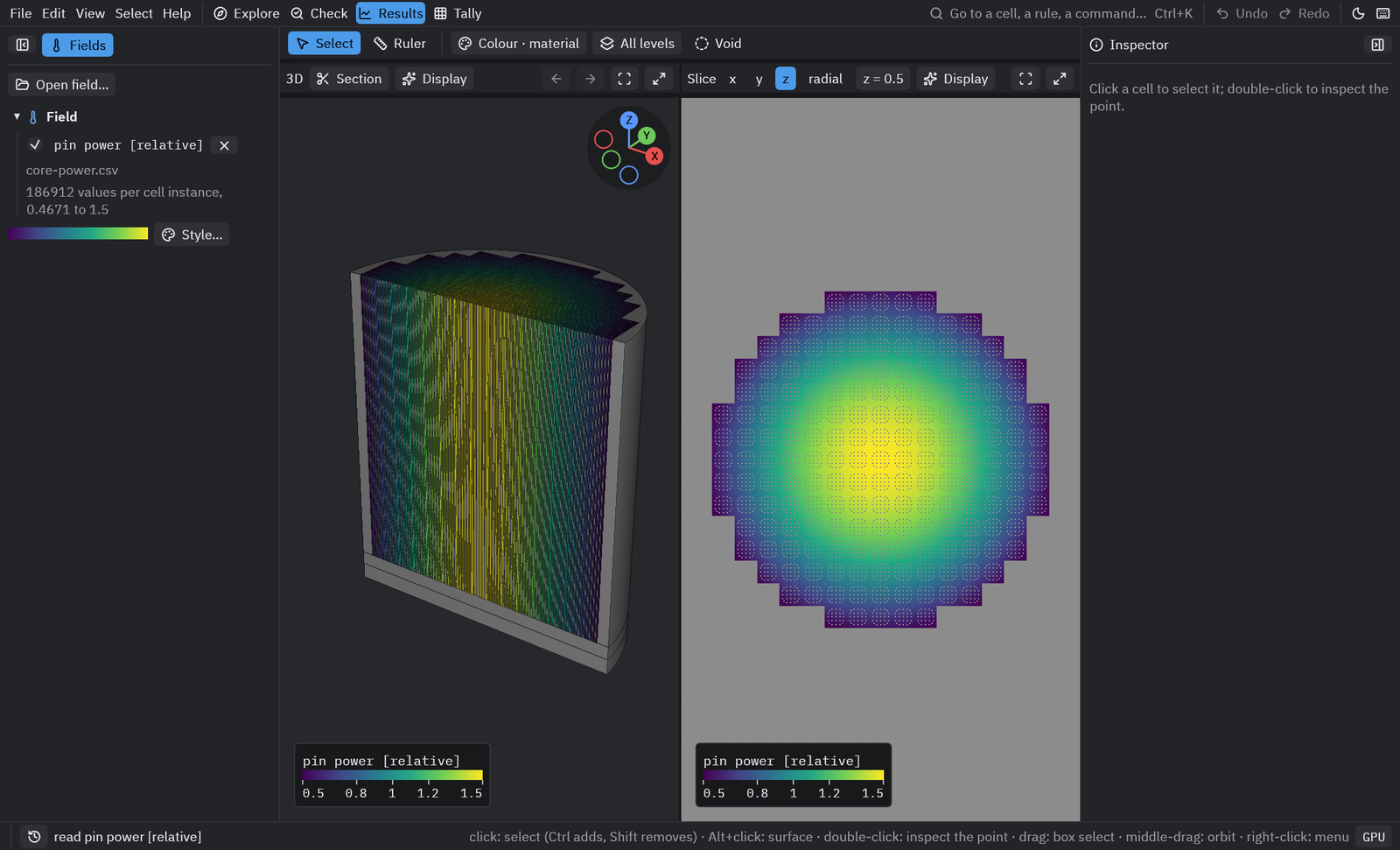
Drop a meshtal, MCTAL or CSV file on the window, or Results → Fields → Open field…. Choose the tally and its bins; the values are drawn over the cells in both views, with a colour bar. Style… sets the colours, the scale and the legend. Double-click a point to read the value there.
Measure distances
The Ruler (M): click two points, or click a face to measure through the layers behind it. The Ruler window lists each cell crossed, with its material and length.
Edit the input
The inspector can edit cards: a cell's material, density, geometry and parameters, a surface's coefficients (drag a number and watch the surface move), a material's composition; and add new cells, surfaces and materials. Each edit is checked for new gaps and overlaps where it is.
Edits are not written to your file until you Save (in the banner that lists them), and can be undone with Undo edit. If your input is assembled from other files, copy the changed cards back into the sources: Copy changed cards in the banner gives them before and after.
Save what you see
- Ctrl+S saves the view (camera, slice, what is hidden, colours, cuts, pins) to
model.i.view.json, next to the input; it opens that way next time. - Places (Explore) keeps named views to go back to, and pinned points with notes.
- The File menu exports the 3D view or the slice as a PNG, and copies the
llevant rendercommand that draws the same view.
Without a graphics card
The viewer uses the graphics card when there is one, and the processor otherwise.
Start it with --backend cpu to force the processor (slower, exact to the pixel), or
--backend gpu to insist on the card.