The viewer: full reference
Everything the viewer does, panel by panel. For a first tour, read the viewer guide instead.
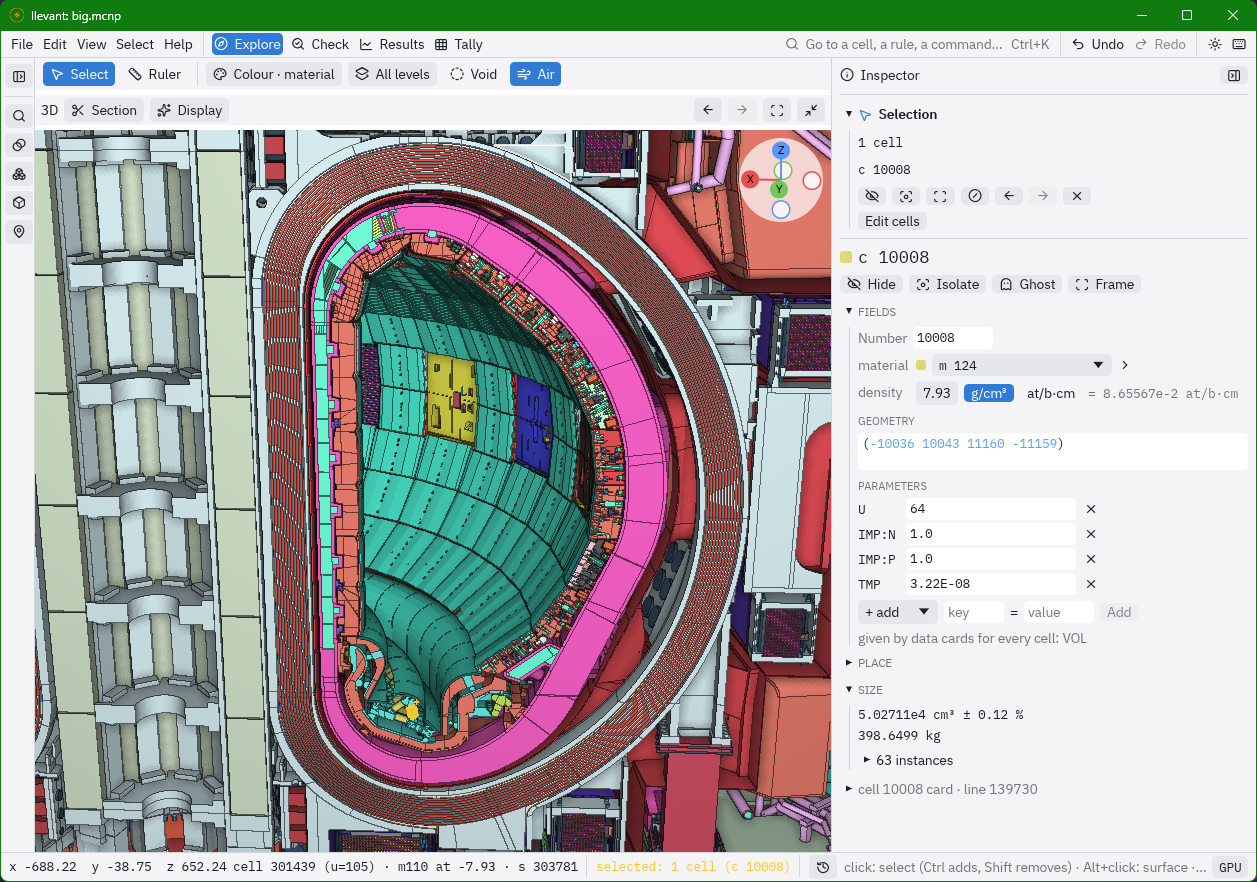
Opening a model
cargo install llevant-viewer                      # or --path crates/llevant-viewer in a checkout
llevant-viewer model.mcnp
llevant-viewer model.mcnp --state view.json       # open at a saved view
llevant-viewer model.mcnp --backend cpu           # auto (default), gpu or cpu
llevant-viewer                                    # the start screen: open a model from it
llevant-viewer --backend cpu                      # the start screen, tracing on the CPU
The model loads in the background (the reference 425 k-cell model takes ~20 s, a
second from the cache) while the window shows the step under way, how far it is and
a Cancel button. The views then frame what is visible, not the model's outer world
cell. Without a model the window opens on a start screen: "Open a model…" (Ctrl+O),
the files opened last, or drop an input on the window; File has the same, and
"Open recent". --backend applies to the models opened from it; --state needs a
model. llevant view and python -m llevant view take the same arguments, and
llevant.view() in Python opens the start screen too.
A model compiled for the first time is shown before its search structures (octrees) are built: views are slower until they land, a few tens of seconds later on the largest models, and then swap in place.
When the input changes on disk (a new version saved over it), a banner offers to read it again: Reload (Ctrl+R) builds again only the universes that changed, and the model shown stays, with its undo history, camera, slice, cuts, what is hidden, the selection and the colours, until the new one replaces it; the cells that changed are then selected, and checked for gaps and overlaps where they are and were (the Problems panel's "what changed" checks them again at other spacings). "Always reload" does it from then on whenever the input changes.
Editing cards
The inspector shows the cell, surface and material cards of what is selected as
written, each word coloured by what it names (surfaces, complemented cells, the
material, universes, transforms; a click opens its page). "Edit card" opens a card's text for editing; Apply replaces it in the input
(only that card changes, comments and spacing elsewhere stay as written) and builds
again only what changed, as a reload does, then checks for gaps and overlaps where the
change is. The edits are not written to the file until Save, in the banner that lists
them, with Undo edit, Discard and Copy changed cards (each card before and after: an
edit to an assembled input is lost at the next assembly, so carry it into the
sources). Reload, Open and quitting ask before dropping edits not saved. Cards read
from READ files cannot be edited.
A surface's coefficients also appear as fields above its card. You can drag one, or
click it and type a value. While you drag, the 3D view and the slice follow the
surface live (a few ms per step on the reference model). Released (or typed), the
surface stays where it was moved and the card as it would be written is shown; Apply
writes it and builds it as any edit, Cancel (or Esc during the drag) puts it back.
Other edits wait meanwhile; if another page is shown, the inspector says which
surface is moved and not written. Live preview is not
offered for surfaces used by lattice cells, for those with TRCL copies, or for the
problem's IMP:N=0 boundary: the field then says why. Released, the edit is still
made as typed. The coefficients are named as for the surface's type (x₀, y₀, R…; the
position on hover). Under "Other forms", a PX can be written as P 1 0 0 d, a CZ
as C/Z 0 0 R and the like, to move it where its own type cannot; it is written only
once you confirm.
Before any Apply (card text, fields, many cells, another form of a surface, a surface moved) the cards it writes are shown before and after, the words removed and added marked (the first three of many cells, and how many more), with what runs once it is applied.
A cell's and a material's page show the card's fields, ready to edit (disabled, with the reason on hover, when the input cannot be edited). Once something changed, the card as Apply would write it shows under them with Apply and Discard. Apply writes only the words changed (the card keeps its layout and comments), as an edit of the card above (built again, not saved, one Undo edit). Changes not applied stay as a draft when another page is shown: the top of the inspector lists them, with Show and Discard.
- a cell: its material, picked from the model's with their swatches (from void, the
density most cells of that material have is offered); its density, in g/cm³ or
atoms/b·cm with the other shown; and its parameters as written (
IMP:N,U,FILLwith its transform,TRCL,VOL,TMP…), each to change or remove, and new ones to add. A parameter that a data card gives for every cell cannot be added (MCNP takes it only one way). A lattice's array of fills stays text.
Its geometry is text, coloured as in the card. Surfaces and cells the input has not
got, words that are not geometry and parentheses that do not pair are flagged as
you type (Apply waits for them). A surface number being typed is completed from the
input's, with each one's type and comment (Tab or a click; ↑ ↓ to choose). A surface
number under the pointer is underlined, named with its type and comment, and
marked in both views; Ctrl+click opens its page. While the geometry has the keyboard or
has changed, the surfaces it names are traced in blue on the slice, as the
cell sees them (through its TRCL and the fills above it; found on a grid of the
plane shown, each crossing then placed along its grid edge by halving, well below
a screen point; a feature thinner than a grid square can be missed). The cell as
edited is outlined in orange before Apply: compiled alone (with its TRCL, the cells
its #n name and the surfaces and transforms these use) and traced the same way. The 3D
view shows both, without tracing the model again: each marked surface is a blue
line where it cuts the faces seen (a blue wash where it is the face seen), evaluated
at each pixel's hit; the cell as edited is a translucent orange shell, outlined,
stronger where it is in front of what is seen, traced alone at a reduced size off
the UI thread when the camera stops (hidden while it moves). For a cell in a
universe both are drawn for the instance at the point inspected, within its box.
With as many terms as before, only
the terms changed are written and the card's line breaks stay; otherwise the
geometry is written again, broken into continuation lines where a line would pass
128 columns.
- a material: its nuclides grouped by element, each fraction a field; atoms ↔ mass
(written again as fractions summing to 1; masses from the mass formula for
nuclides, within 0.12 %, and standard atomic weights for natural elements);
Normalise; nuclides and keywords (NLIB…) added or removed; a mixture of other
materials by volume, each at its density, written as the composition, with the
mixture's density; and the comparison with another material, element by element.
Edit → New cell, New surface, New material makes a card in the inspector, numbered after the highest in use, shown as it will be written and added at the end of its block (one edit, one Undo edit takes it out):
- a cell: its material and density, its geometry (with the same help as when editing
one), its parameters (
IMP:N=1, and theUof the cell it is in, when no data card gives them), drawn on the slice before Apply; it is cut out of the cell of the point inspected (#nadded to that one's geometry) unless unticked. A cell with aTRCLis not cut so (MCNP moves the surfaces of its#nwith it): cut it by hand. Data cards that give a value per cell get one more (1for importances,jfor others); in vertical format the cell is refused. - a surface: its type and coefficients (named as for its type), and a comment; drawn on the slice before Apply.
- a material: its nuclides and fractions, or another material's to start from.
"Edit cells" under the selection (or "Edit" beside a rule's matches in Find, which
selects them) edits many cells together, as one edit that one Undo edit takes back.
Each field is kept, set or (for parameters) removed, with what the cells have now
beside it (each value and how many cells have it): the material (cells that are void
need the density they take; the usual one of the material is offered); the density,
set in either unit or scaled (each cell's times a factor, in the unit it is written
in); IMP:N, IMP:P, U and the parameters the cells have, and others added by key.
The cells stay selected afterwards, by number (a rule they matched may not match any
more). "Number them from … by …" renumbers them in order, every reference with them
(#n, LIKE n BUT, tallies…, as migjorn follows them; those it cannot are left as
written and named in the status). A single cell, material, surface or universe is
renumbered from its page ("Number"). The numbers taken must be free: renumbering into
numbers being freed is refused, so that the edit can be taken back card by card.
The viewer remembers the files opened last, the theme, the workspace shown, the
panel each workspace last showed and how the sides are laid out in %APPDATA%\llevant\viewer.json (~/.config/llevant/viewer.json;
LLEVANT_VIEWER_SETTINGS to put it elsewhere).
Controls
The left mouse button belongs to the active tool (the tool row over the views: Select or the Ruler; Esc goes back to Select; with Select, a left drag selects the cells seen in the box), except on the handles of cuts, of the slice plane in 3D and (in Tally) of FMESH meshes, which are dragged whatever the tool (below). Navigation is CAD style, with the middle and right buttons, whatever the tool:
| Where | Action | Does |
|---|---|---|
| 3D | middle-drag | orbit about the point under the cursor where the drag starts (the blue mark while dragging); over the background, about the centre of the view (what was last looked at or moved towards) |
| 3D | Shift + middle-drag, right-drag | slide sideways and up or down |
| 3D | Alt + middle-drag | look around (the eye stays where it is) |
| 3D | Alt+←, Alt+→ (or the header's arrows) | back and forward through the places the camera rested at (half a second or more), as in a browser |
| 3D | scroll | move towards the point under the cursor (a fraction of the way each step, so never through it) |
| 3D | the axes, top right | view from +x, −x, +y, −y, above or below, keeping the centre and the distance |
| 3D, pointer over it | W/S, A/D, Q/E | fly forward/back, left/right, down/up; Shift 4× faster, Ctrl 4× slower |
| Slice | middle- or right-drag | pan |
| Slice | scroll | zoom about the cursor |
| either | right-click | the menu of what is there (below) |
| anywhere | Ctrl+Z, Ctrl+Shift+Z (or Ctrl+Y) | undo, redo |
| anywhere | F1 (or the keyboard button) | every key and mouse action |
| Tool | Click in either view |
|---|---|
| Select | select the cell there (the first visible one in 3D, the one at that point in the slice; exact, CPU): Ctrl+click adds it or removes it, Shift+click removes it, a click on the 3D background clears the selection; a drag selects the cells seen in its box (in 3D the first visible along rays on a 64 × 64 grid, in the slice those at the grid's points; Ctrl adds, Shift removes); a double-click marks the point (a cross-hair ring in both views) and shows it in the inspector; with Alt the surface there instead: held, the surface under the pointer is marked in both views and named at the pointer; Alt+click opens its page and keeps it marked (the selection is left as it is; Esc lets go of it), again at the same place the next surface through the point (coincident ones). In 3D it is the surface the ray enters through, in the slice the nearest within a few points |
| Ruler (M) | measure: two points (click one then the other, or drag), or "through the layers" (click a face, or near a boundary in the slice: along the surface's normal through what is behind it, up to the next void). The line shows in both views with a tick at each boundary; the Ruler window lists every cell crossed with its material, where it starts and its length (exact: Model::trace at the level shown), Copy (CSV) and Clear |
Pins come from the right-click menu's Pin here (or the inspector's Pin): a marker and a banner with its cell and material in both views, saved with the view.
Cuts and the slice plane need no tool. In 3D each cut is a faint outline with its handles (a plane as a square with a dot in the middle, a wedge as its sides, a box as its edges with a dot on each face): drag a dot to move it; a click on its outline or a dot selects it (filled, with the rings that turn it, and open in the 3D view's Section menu); a click elsewhere, or Esc, lets go of it and is a click on the cells. The slice plane is not drawn in 3D at first (the Section menu shows it); it is drawn while its position or angle is dragged or typed in the slice's header, to see where it goes. Shown, it has a dot of its own beside its middle; dragging it moves the slice and selects it (its rings then turn it). In Tally, a click on an FMESH mesh selects it (its handles show) and a click elsewhere lets go of it.
Selecting, hiding, isolating
The selection is a set of cells given by a rule: a cell, all cells of a universe or
material, the cells a universe fills, or any combination (u 20040 & m 5). It is
tinted and outlined in both views at once, without tracing again, and the cell
under the pointer is outlined in white and named in the status bar. Every
instance of a cell is selected with it (a cell of a universe that fills twenty
envelopes is outlined in all twenty).
The inspector, on the right of every workspace, shows what is picked: the selection
(how many cells, the rule (folded to a few lines when long: "show all"), how they split
by universe and material), the point last
double-clicked (its coordinates, also r, φ, z; the cell path level by level with
universes, lattice elements, materials and densities; the field there), and the
page of its cell (or of the one cell selected): Hide, Isolate, Ghost and Frame, then
its fields (material, density, geometry, its surfaces named and marked on hover, parameters;
below), what fills it, its place (its universe, the cells holding it, how many
instances), its size (volume and mass of every instance together from the last volume run, or
"Measure"; Measure also measures each instance on its own, listed folded under the total
with the cell holding it, its mass or volume and its share: with one filler in several
envelopes, what each envelope clips of it),
and its card (folded at first). Every material, surface,
universe and cell there opens a page of its own with › (or a click on it in a
card): a material's composition by element (and its nuclides), the cells and
universes using it and their densities, its totals from the last volume run; a
surface's coefficients to drag, the cells using it; a universe's contents,
the cells it is filled into and how many times, its materials, and "Open on its
own". The inspector's ← and → (and the pages visited, above) go back and forward;
a new pick starts again from its page. Every cell, universe and material named is a
link: a click selects it, Ctrl+click adds or removes it, a double-click frames it, a
right-click opens its menu. "Parent" (Ctrl+↑) selects the cell holding the selected one; Shift+Alt+← and
Shift+Alt+→ step through earlier selections, as in a browser (Alt+← and Alt+→ do
the same for the places the camera rested at).
A right-click in either view opens the menu of what is there: the cell, the
surface there and those coincident with it (Inspect, as Alt+click, then the actions
on the cells using it), its universe, its material and each envelope above it, each
with Select, Add, Remove, Frame, Hide, Isolate and (for universes) "Open on its
own"; then Slice here, Radial
slice, Cut here, Pin here, Copy point and Copy cell path (MCNP's 12 < 100[1 0 0] < 5,
which Find takes back); then the
selection's actions.
| Key | Does |
|---|---|
| H | hide the selection (and what it holds) |
| Shift+H | isolate it: show only it, what it holds and the cells holding it |
| Alt+H | show all again (void cells stay as the Materials panel says) |
| G | make the selection a ghost: a shell over what is behind it, what it holds shown |
| Alt+G | no ghosts |
| F | frame the selection in 3D and centre the slice on it |
| Ctrl+I | invert the selection |
| Esc | clear the selection and the marked point (and back to the Select tool, letting go of a cut, no mesh drawn); while a surface is dragged, take the drag back |
Hiding and isolating are scene edits: undone with Ctrl+Z, saved with the view. The eyes in Envelopes, Find and Materials say what the 3D view draws, whatever hides it: open when shown, faded open when only some of a material's cells are, closed when hidden by its own rule (a click shows it again), and faded closed when something else hides it, named on hover: isolating (a click adds it to what is isolated), a hidden envelope above it, the level shown, its universe or material, a rule (the eye is then disabled). While isolating, a line above the rows says what is isolated, with Stop. Isolating a whole universe still traces through the hidden levels around it; "Open u=N on its own" (below) is much faster for that.
"Slice here" moves the slice to the point, "Pin" pins it. The pins are listed below it, each with a note (shown as its banner's title), "go" (show it in the inspector and slice through it) and ×. In the slice, pins and the point off the plane are faded, and banners show only for pins on it.
For a pick inside a filled cell, "Open u=N" opens that universe as a model of its
own: in its own frame, cut to a box around what it holds, the model it came from
kept open behind it. The tool row shows where you are (model › u=N) and "⬅ Back".
It is much faster than hiding everything else, and shows the parts of a filler that
its envelopes clip. Saved views remember the universes opened (open).
Cards can be edited there as from the whole model (fields, text, surfaces dragged
live, new cards, Undo edit). The edit is compiled against the whole model, then the
universe is cut out of it again and stays shown, its camera, selection and hidden
cells kept (about 1.5 s more than the same edit from the whole model on the reference
model: 6.8 s against 5.3 s for a surface of u=10162). Surfaces and materials are
shared by every cell that names them: their page says when cells outside the
universe use them too ("also used by 14 cells outside u=…"). A new cell is put in the
universe opened (U=). An edit that takes the universe away (its cells moved to
another, renumbered) goes back to the model holding it, saying so.
Everything that changes what is shown (colours, hidden cells, the clip plane, effects, pins) can be undone: Undo and Redo (top right) say what they would undo. Dragging a slider is one step. Moving the camera or the slice is not undone.
The window
The window is organised in four workspaces (tabs in the menu bar's row, Ctrl+1 to Ctrl+4; decision 0012):
| Workspace | On the left | For |
|---|---|---|
| Explore | Find, Materials, Envelopes, Volumes, Places (saved views and pins) | what is where |
| Check | Problems, Statistics | gaps, overlaps and the input's diagnostics |
| Results | Fields | fields and tallies over the geometry |
| Tally | FMESH (meshes are shown and handled here; + Box, + Cylinder draw a new one in the slice) | laying out FMESH meshes; the inspector shows the mesh selected: what MCNP would object to, its voxels, and the cells and materials it covers (sampled on a 16³ grid in it) |
Each has the same shape: its panels on the left (tabs at their top), the 3D view and the slice side by side in the middle, and the inspector on the right. The sides can be resized, and folded to a rail of icons (their buttons, the View menu, Ctrl+[ and Ctrl+]). The layout is the same in every workspace: switching keeps the sides' widths and folds and the views where they are (3D on the left, half the width each), and changes only the panels on the left (each workspace remembers the one it showed last). The selection, the camera, the slice and what is hidden are the same in every workspace too: switching changes the panels, not what you look at.
Over the views, the tool row: Select and the Ruler, then what applies to both views (the colouring, the level shown, void cells and gases shown or hidden). Each view has a header with its own settings:
- 3D: the Section menu (planes, wedges, a section box; the slice plane in 3D with its handles, cutting at the slice), Display (outlines, ambient occlusion, orthographic; then, as a group of their own, gaps seen through and the problems found drawn on top; the button says "ortho" when it is) and Fit.
- Slice: the plane (x, y, z or radial) and where it is (or its angle φ, with
its axis in a menu), Display (outlines, between cells, materials or universes;
cell and surface numbers; the grid) and Fit. Outlines between materials (void is one) or
universes follow the deepest cells, and help read a field: the boundaries that
explain it, without every cell's. At a level shown (
LEVEL n) they are between cells. Changing them draws the slice again without tracing it.
Each header also has a button that maximises its view, and restores both again.
The menu bar's row also holds a search field that opens the command palette (Ctrl+K), Undo and Redo, the theme and the keys window.
Long work (volumes, checks, fingerprints) runs in the background: the status bar shows its progress with a Cancel button, and the window stays responsive.
File exports the 3D view and the slice as PNG next to the input (with the colour bar drawn in, as on screen), and copies the 3D
view as the llevant render command that draws it again (camera, projection, cuts,
hiding, colours).
The menus (File, Edit, View, Select, Help) hold every command with its key, and
Ctrl+K opens the command palette: type any command's name, or what to go to:
a rule (u 20040 & m 5, a cell number) to select, frame, hide or isolate,
slice z 10 (or slice x=-3), three numbers to look at that point, open u
20040, level 0 (or level all), ghost c 300. Up and Down choose, Enter runs.
The tool row's level menu (shown when the model has universes) shows one
universe level in both views, as MCNP's plotter shows LEVEL n: at level 0 the
envelope structure on its own, each filled cell a solid cell, to check it for gaps
and mistakes whatever fills it; at level 1 only the cells of the universes filling
them (the rest blank in the slice and see-through in 3D); "All levels" the deepest
cell everywhere. Ghosts (right-click → Ghost, G) are drawn as shells over the
image, their contents shown: ghost an envelope to see how its filler fills it.
| Panel | Holds |
|---|---|
| Find, Materials, Envelopes (Explore) | Find: a rule (u 320 & m 33, c 10 40-55, s 4120, void, fill 320, in …, shown & u 320; Enter selects it) and its cells, grouped by universe, by material or listed by number (drawn only where scrolled, so 10⁵ rows scroll smoothly), with Select all, Hide, Isolate, Ghost and ☆ Save; with the box empty, the rules saved (by name, in the view file: undoable) and the selections made last. Materials: a legend of the colours (by material, or what each material looks like with realistic colours): eye, swatch, link, kind, cells, densities; with realistic colours, each material's look can be chosen (undoable, saved). Envelopes: the level-0 cells, each with what fills it (universe and its size) or its material and its card's comment. Each cell row has an eye (hide or show), a swatch of its colour, a link, and › to its page in the inspector |
| Inspector (right, every workspace) | what is picked and pages of cells, materials, surfaces and universes (above); cards as written in the input, with their line numbers (the input is read again beside the model, for this) |
| Places (Explore) | views saved by name (the camera, the slice and the scene, kept in the view file; a click goes back to one: its scene as an undoable step, the pins left as they are), then the pinned points and their notes |
| Volumes (Explore) | volumes by material, cell or universe over a region (what is shown, the problem, the selection's box, the section box) at 10⁵–10⁷ grid lines, in the background: volume, its relative uncertainty and mass (from g/cm³ densities, or atom densities and the material's atomic mass), sortable, rows as links; the selection's total; "Refine" halves the spacing; CSV next to the input |
| Problems (Check) | the full check for gaps and overlaps over a region (as llevant check), in the background; the gaps and overlaps the slice has run into while looking around; the input's diagnostics with their lines. At the top, a foldable Problem display section: how problems show in 3D (below). Each problem is a two-line row (status and volume, then its cells: the first six, all of them in the tooltip), largest first; its arrow frames it, slices through it and selects its cells. The 3D view can draw them on top of everything (Problem display) |
| Statistics (Check) | the model's sizes and loading times, the largest and most repeated universes and the most used materials (bars, names as links), and "Find universes alike" (fingerprints: the same geometry and materials under other numbers) |
Fields (Results; a field file dropped on the window opens there; Style… sets the colour map (viridis, turbo, inferno, grey), discrete bands, the scale (fitted ends rounded out to decades or a 1-2-5 step unless round ends is off; colours of their own for values below and above it, marked by triangles at the bar's ends), a threshold (only values from one bound to another drawn, the rest as no value; either bound optional), opacity and the legend (corner, orientation, the bar's size or its length and thickness in points, text size, number format with at most so many digits, ticks: few or many (labels that would overlap left out), exactly N (evenly spaced, in decades on a log scale) or at the band edges (with discrete bands; the panel says when the edges miss the decades), every one of those labelled: the bar grows, or the labels take two rows, to fit them; title), saved with the view as style; Opened switches between the files read; with a ruler, the field along it is plotted under the views) |
numbers drawn over the cells: "Open field…" (or drop the file on the window) reads a CSV file, whose first column is cell, material, instance or path (an instance in MCNP notation, 12 < 100[1 0 0] < 5) and whose second holds the values (header dose [Sv/h]), an MCNP meshtal file (exact meshes, TR= included, when the run's input has the FMESH card), a D1SUNED cuvmsh (out=cuv, drawn as each voxel's flux) or an MCTAL file (cell tallies). For tally files the panel shows the run and menus of its tallies (those that can't be drawn greyed, saying why) and of the bins along each of the chosen tally's axes (the Total, or the sum where there is none), results or relative errors, and the run's input (the model's unless another is chosen). A choice that can't be read stays, with the reason, to choose another. An MCTAL cell tally lists its bins as MCNP names them, with value ± relative error: click one to select its cells (double click frames them), or isolate one bin's cells or all the tally's (by cell: a bin of chains through particular lattice elements shows every instance of its cells). The scale is fitted to the values (log when they span two decades) or set by hand; opacity says how much the field covers what is under it: a neutral grey, which cells without a value show (not named on the colour bar; tinted blue on the grey colour map, whose middle is grey), or with cell colours under it the cells' own colours (also where there is no value). Values outside the scale take the colour of its nearer end; a tally that scored nothing gives 0, a value (on a log scale, the low end's colour), not no value. The colour bar shows in both views, in an opaque box sized to its labels: every number of a bar in one notation (1e0 … 1e12, never 1000 beside 1e12), and with few or many ticks, labels that would overlap left out (the ends always kept; a longer bar, fewer ticks or smaller text shows more). The inspector gives the value at the point double-clicked. Undoable, saved with the view |
The tool row's Colour menu colours by cell, material, universe, realistically or by
density (g/cm³ on a log scale from 10⁻⁴ to 25, atom densities through the material's
atomic mass; the same colours as llevant slice and llevant render), with a colour
bar in both views for density.
What the views' headers and the tool row hold:
- Hiding has no panel of its own: the eyes of the Find, Materials and Envelopes panels (cells; materials and void in Materials), Hide and Isolate in the right-click menu and the inspector, Find's rule (then hide), and the tool row's Void and Air buttons (Air: every material whose look is a gas, shown when the model has one). A hidden cell or universe hides what fills it; hiding materials (or void) never hides a filled cell, so what fills it shows. Void cells start hidden.
- Section (the 3D view's Section menu): more cuts, all at once: "+ plane" (through the point inspected, at any angle, cutting away the side facing you), "+ wedge" (a quarter about z, open towards you; any angles, more than half a turn too) and "+ section box" (only what is inside: around the selection, or the middle of the model). Each one's numbers can be dragged here (the selected cut is open, the others folded). In the 3D view their handles drag them, whatever the tool (the same size on screen whatever the zoom): a plane's centre along its normal, its three rings (x red, y green, z blue) to turn it about that axis, when it is selected (in steps of 15°, which include the x, y and z axes; hold Shift or Alt to turn it freely), a wedge's two sides about its axis, a box's six faces. The slice plane (when shown in 3D) has the same handles, beside its middle (a teal centre that moves the slice and, once it is selected, the three rings, which turn it to x, y or z or, between them, to a radial slice), and each is a step of the history, like the cuts'. Each cut's row has a checkbox that turns it off and on again (off: kept, cutting nothing and not drawn; undoable, saved with the view; the button then reads "Section · 2 of 3"), and show cuts in 3D hides every cut's outline and handles (they still cut; the one selected in the menu is still drawn, to be dragged). The Section menu also shows the slice plane in 3D with its handles, and cuts the 3D view at the slice (away from the eye). A plane cut has the same syntax: x, y or z at a position, or radial (through an axis, at an angle φ). The right-click menu's "Cut here" adds cuts too.
- Display (the 3D view's header): outlines (and their colour: dark, grey, light, white or any, for a theme or cells they would not show on) and ambient occlusion (both on by default), orthographic (O).
- Problem display (the Problems panel, Check workspace; only there): see through gaps (off by default: on, a gap is a veil of its black and grey checker over what is behind it, so a hole in front hides nothing; undoable,
see_through_gapsin the view file) and problems found, on top (off by default: the boxes of the gaps and overlaps the last check found, and markers where the slice met some, drawn through whatever hides them, gaps blue and overlaps pink). - Slice (its header): x, y or z at a position, or radial: the plane through an axis (z by default, through x = y = 0 when the model spans it) turned to an angle φ, the vertical slices of a torus; PageUp and PageDown over the slice step it (a hundredth of the view, or a degree; Shift 10×). Display: outlines along cell boundaries (on by default), cell and surface numbers, and the grid (off by default): lines of the plane's coordinates at round steps (1, 2 or 5 × 10ⁿ cm, fainter ones between), the zero lines stronger, numbered along the bottom and left edges, with which coordinate is which and the step in the corner. Fit frames the model. The right-click menu's "Radial slice through here" turns it to a point.
- Camera (the 3D view's header): Fit frames the visible model; Ortho (O) sees it straight on, every ray parallel.
- Tracing (the status bar's backend chip): backend, and While moving, from responsive (more previews of lower resolution, which flicker) to sharp (fewer, sharper previews; what the camera uncovers fills in a little later). The window's frame rate is the same either way.
- Save view: File, Ctrl+S.
The Tally workspace (also the palette's fmesh, or right-click → FMESH) lays out
FMESH tallies and writes their cards; the input itself is never changed. The FMESH
panel's + Box or + Cylinder, then a drag in the slice, makes one: a box (on a
radial slice, along the plane, placed by a TR) or a cylinder (from its centre, about
the slice's normal), as deep as the model (Esc: not now). Meshes are shown and
handled in Tally only, whatever the tool: click one to select it; drag its handles to move its outer bounds or the whole of it, and in 3D
its rings to turn it (15° steps); Shift leaves numbers unrounded, Delete removes it.
The slice shows each mesh's voxels as the plane cuts them and the voxel under the
pointer; 3D shows wireframes. The FMESH panel (the Tally workspace's) lists the
meshes and the input's own (edit a copy of one), and has the selected one's numbers
as on its card: tally, particle, *, comment (FC), coarse bounds and fine bins per
axis in MCNP's syntax (-5 2i 10, 2 2r 1), ORIGIN/AXS/VEC of a cylinder,
EMESH, TMESH, OUT=, and a TR (cosines, or angles with *TR); "Fit to selection",
"Fit to the model", "Along the slice", "Frame"; the number of voxels and values, the
meshtal's size, bin sizes, and what MCNP would object to (numbers the input uses, a
number not ending in 4). Its cards (FC, FMESH, TRn) are copied or saved, every
mesh's at once with each TRn once. Meshes are undoable and saved with the view.
At the right of the menu bar's row: search (the palette), Undo, Redo, the theme (one button, turning dark, the default, to light, to as the system and back) and the keys window. The status bar says what is under the cursor (its coordinates and cell), the selection, the jobs running, the search structures being built (a model is shown before they are; views are slower until then) and the message of the moment, then what the active tool does. A message is shown while it matters: news of what was just done (loaded, saved, undid…) for a few seconds, work under way while it runs, and a warning or an error (in the warning colour) until dismissed with its ✕ or followed by another. The button before it opens the log of the last 50. On its right, the 3D backend's chip opens the frame rate, the scale of the moving view, how much of the still view is at full resolution, the measured cost of previews and refinement, the slice's progress, and the tracing settings.
Slices are exact: each image row is one Model::trace, boundaries where they are.
Gaps are black, overlaps and unsupported cells magenta, and a slice that lies exactly
on a surface shows it as on-surface grey (move it off round numbers). Panning and
zooming move the last image at once; while the view moves it is traced at a
quarter of the resolution, and in full once it has been still for 0.2 s, coarse
rows first. Its Labels menu writes cell numbers in the cells and surface
numbers along the boundaries (amber), as MCNP's plotter labels its plots, where they
fit.
Surfaces: a double-click in the slice picks the surface within a few points of the pointer
(in 3D, the surface the visible face lies on); the status bar names it (s 15, or
s 15.3 for facet 3 of a macrobody) and the inspector shows the side the cell takes,
surfaces coincident with it, the cells using it, its card and "Select cells on s N".
Look
Neutral grey with a blue accent for what is active or chosen, in a dark and a light
theme. The interface is set in IBM Plex Sans, numbers and data (coordinates, cell
paths, banners, the status bar, legends) in IBM Plex Mono, and icons come from Lucide; all
three are bundled in assets/ (Plex Mono in llevant-render's, which draws legends into saved images too; the fonts under the SIL Open Font License, Lucide
under the ISC licence; the licence files are next to them). The logo, on the start
screen, as the window's icon and as the spinner (its petals turning about the stars), is
the rosette of the Fusion for Energy emblem (assets/logo.png, and cut in two,
logo-stars.png and logo-petals.png, for the spinner). With flat colours the
3D view sits on the theme's background; realistic colours keep the sky of
llevant render. Overlays
(the selection in yellow, pins in teal, the point a drag orbits about, in blue) have a dark halo so that
they show on cells of any colour.
How the 3D view stays smooth
While the camera moves, the 3D view is traced at a reduced scale chosen from the measured cost of tracing, so that each preview takes about the time on the slider (33 ms by default). When the camera stops, full-resolution tiles replace the preview from the centre outwards. Post-process effects run on the GPU on every frame, so changing colours or effects needs no new tracing.
--backend |
Traces on | Use |
|---|---|---|
auto (default) |
the GPU, or the CPU when the only adapter is a software one | any machine |
gpu |
the GPU | |
cpu |
the CPU | no GPU, or exact pixels everywhere |
A model opened from the start screen or the command line is shown before its GPU
copy is made: the graphics driver compiles the renderer then, which takes seconds
whatever the model's size (~4 s on lavapipe, more on some laptop drivers). Until then
the 3D view traces on the CPU; it moves to the GPU by itself when the copy is ready,
and says so if that took more than 10 s. With cpu, or auto on a software adapter,
no GPU copy is made until the GPU is chosen. A reload, an edit or a universe opened
makes the new model's GPU copy before it replaces the one shown.
While the camera moves, the 3D view moves the hits it has to the camera every frame
(reprojection), so the window follows the camera at its refresh rate however slowly
previews come: on big models one GPU ray can take tens of milliseconds, whatever the
image size. On the reference model on a laptop RTX 3060, orbiting holds 60 fps (19 ms
at the 95th percentile) with about 12 previews a second, and the still view reaches
full resolution in ~0.7 s (~7 s with cpu). Numbers: Benchmarks.
The GPU renderer works in f32 and may differ from the CPU at a few edge pixels; picks always use the CPU.
The view file
"Save view" writes the whole view as JSON to --state, or else to
<model>.view.json, which is read when the model is opened again. Every field may
be left out:
{
  "camera": { "target": [0, 0, 0], "distance": 6200, "yaw_deg": -60, "pitch_deg": 22, "fov_deg": 30 },
  "colour_by": "realistic",
  "materials": { "12": "steel", "13": "copper roughness=0.2" },
  "hide_void": true,
  "hidden_cells": [12, 13],
  "hidden_universes": [],
  "hidden_materials": [],
  "hide": ["u 20040 & m 5"],
  "isolate": "in c 100",
  "level": 1,
  "ghost": ["c 300"],
  "clip": { "point": [0, 0, 0], "normal": [0, -1, 0] },
  "cuts": [{ "kind": "wedge", "point": [0, 0, 0], "axis": [0, 0, 1], "zero": [1, 0, 0], "from": -45, "to": 45 },
           { "kind": "box", "lo": [-100, -100, -50], "hi": [100, 100, 50], "keep": true }],
  "slice": { "axis": "z", "at": 10.0, "centre": [0, 0], "width": 2400, "outline": true },
  "effects": { "outline": true, "ambient_occlusion": true },
  "backend": "auto",
  "budget_ms": 33,
  "pins": [{ "point": [120.0, -3.5, 40.0], "note": "flange" }],
  "views": [{ "name": "inboard", "camera": { "target": [0, 0, 0], "distance": 900, "yaw_deg": 0, "pitch_deg": 10, "fov_deg": 30 },
              "slice": { "axis": "x", "at": 0.5 }, "scene": { "colour_by": "material" } }]
}
| Field | Meaning | Default |
|---|---|---|
camera |
orbit camera: target point (cm), distance (cm), yaw about z from +x and pitch above the xy plane (degrees), vertical field of view; ortho for an orthographic view as wide as the field of view at the target |
frames the visible model |
colour_by |
cell, material, universe, realistic (what materials look like, lit physically) or density |
cell |
materials |
looks of materials by MCNP number, as llevant render --look |
classified from the cards |
hide_void |
hide void cells in 3D | true |
hidden_cells, hidden_universes, hidden_materials |
MCNP numbers hidden in 3D (materials: cells that are not filled) | none |
hide |
rules of cells hidden in 3D (below) | none |
isolate |
a rule: only its cells shown in 3D, with what they hold and the cells holding them | none |
level |
the universe level shown in both views (MCNP's LEVEL n) |
every level (deepest cells) |
ghost |
rules of cells drawn as ghosts in 3D: shells, their contents shown | none |
see_through_gaps |
gaps (and overlaps, on the CPU) seen through in 3D as a veil of their pattern; llevant render --see-through-gaps |
false |
clip |
plane cutting away the side its normal points to (read, but not edited in the viewer: use cuts) | none |
cuts |
more cuts: plane (point, normal), wedge (about the axis through point along axis, from angle from to to in degrees, right-handed, measured from zero), box (lo, hi; keep the inside or cut it away) |
none |
cuts_off |
the cuts turned off (indices into cuts, from 0): kept, cutting nothing |
none |
slice |
plane axis = at, centred on centre (the plane's two coordinates: y, z for x; x, z for y; x, y for z), width cm wide; with radial (point, axis, zero, phi) the plane through that axis at phi, at off it, centre out along the radius and up the axis; outline, outline_by ("cell", "material" or "universe") and outline_colour ([r, g, b]), cell_labels / surface_labels (numbers written over it), and grid |
frames the model, outlines between cells, no numbers, the grid |
effects |
post-process effects (outline, ambient_occlusion; outline_colour, [r, g, b]) |
both on, black outlines |
backend |
auto, gpu or cpu |
auto |
budget_ms |
time per preview image (ms, 16 to 100): "While moving", responsive to sharp | 66 |
pins |
pinned points, each with an optional note |
none |
rules |
rules saved by name in the Find panel: name, rule (as Find and the palette read it) |
none |
views |
views saved by name: camera, slice and scene (the scene's fields, as at the top level) |
none |
field |
numbers drawn over the cells: path (CSV, meshtal, cuvmsh or MCTAL file; relative ones are looked for next to the model too), for tally files tally, energy and time ("total", "sum" or an index), bins (MCTAL, "m=0 u=sum"), error and input (the run's MCNP input, when not the model's); scale (lo, hi, log; fitted when left out), opacity (0 to 1), geometry_under (the cells' colours under it rather than grey), threshold ([lo, hi], either null), style (ramp, bands, below / above colours, exact_ends, legend: corner, size, length, thickness, vertical, text, title, numbers, digits, many_ticks, tick_count, band_ticks), shown |
none |
Rules (llevant_scene::query): c 12 40-55 (cells), u 20040 (every cell of a
universe), m 5 (cells of a material, not filled ones), s 15 (cells whose cards
use surface 15: any facet, TRCL copies, through #n), void, filled,
fill 20040 (the cells that universe 20040 fills), in <rule> (its cells and
everything inside them), 12 < 100[1 0 0] < 5 (MCNP's repeated-structure notation,
as Copy cell path writes it: cell 12 where it is inside 100, itself inside 5, at any
depth; lattice elements are read and ignored, a selection being of cells), all,
shown (or visible: the cells the 3D view draws now, see below),
combined with &, | (or ,) and !, grouped with parentheses.
shown is what the 3D view shows: cells not hidden (by their numbers, rules, an
isolated rule or a hidden cell holding them), at the level shown (there only, filled
ones too; at the deepest cells, those not filled), and with some part the Section's
cuts leave (planes, wedges, boxes, the slice plane when it cuts). Cells behind
others count: shown & m 69 selects every steel cell left after a cut, not just
those in front. Cuts are tested on the cells' boxes, split down where they lie across
a cut (Model::cells_kept), so a cell only just reaching past a cut, or below a
lattice, may count. A rule with shown is frozen when it selects, hides, isolates,
ghosts or is saved (under the name given, by default the rule as typed): it becomes the list of the cells it gave (c …), so the selection does not
change as the view does; Find lists its cells anew as the view changes.
explore.view.json
is the view of the screenshot above, on docs/examples/core.i; the same folder has
the views of the other screenshots.
From other tools
A tool shows a model at a given view by writing a view file and starting the viewer. From Python:
import json, subprocess

view = {"colour_by": "material", "hidden_universes": [20040],
        "slice": {"axis": "x", "at": 150.5}}
with open("view.json", "w") as f:
    json.dump(view, f)
subprocess.Popen(["llevant-viewer", "model.mcnp", "--state", "view.json"])
Popen returns at once; the viewer runs in its own window and process.